Welcome to Sagely AI
Sagely AI is an AI-powered long-form content summarizer that extracts main points from enormous blocks of text and presents them in a short and easy-to-digest format so that you can spend less time reading and more time learning.
Before you start using Sagely AI, we recommend you spend a few minutes going through this Quick Start Guide to learn the basics of how the app works.
1. Sign Up for a New Account
To start with Sagely AI, you first need to sign up for a new account. Go to: https://app.sagelyai.com/login and click the “Continue with Google Account” button.
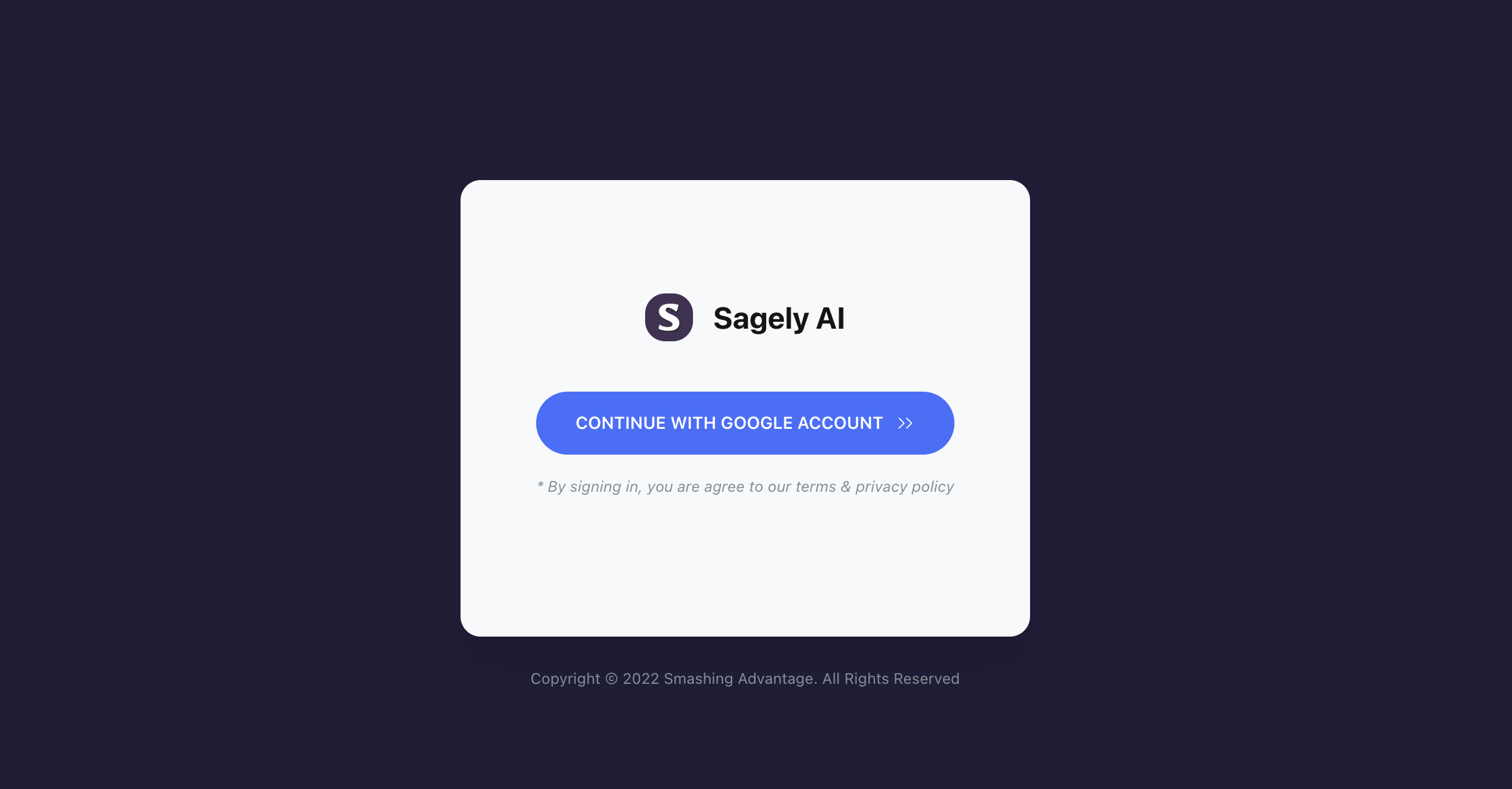
Once you’ve signed in, you should see the following screen:
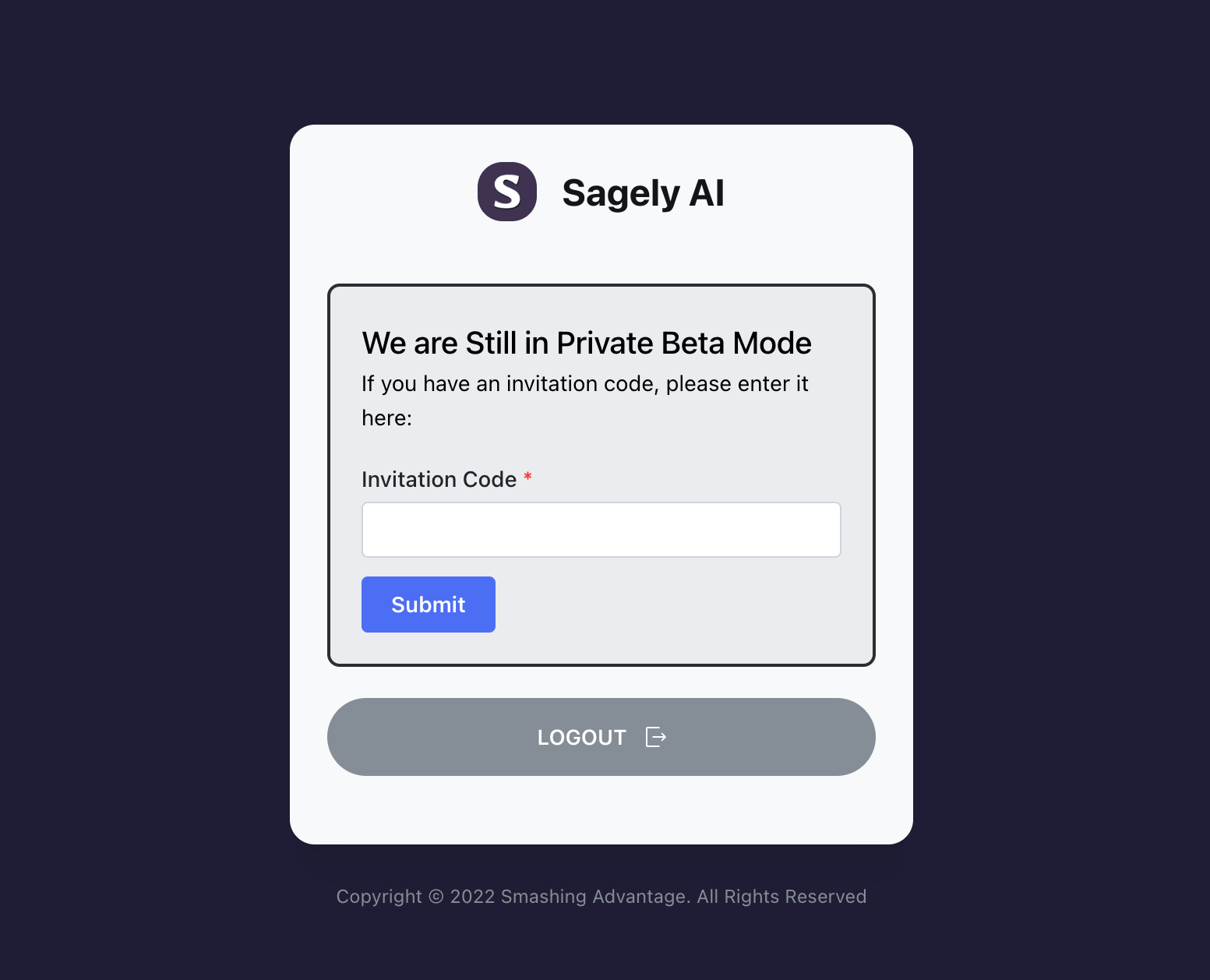
Here you’ll need to insert your invitation code and click the “submit” button to continue:
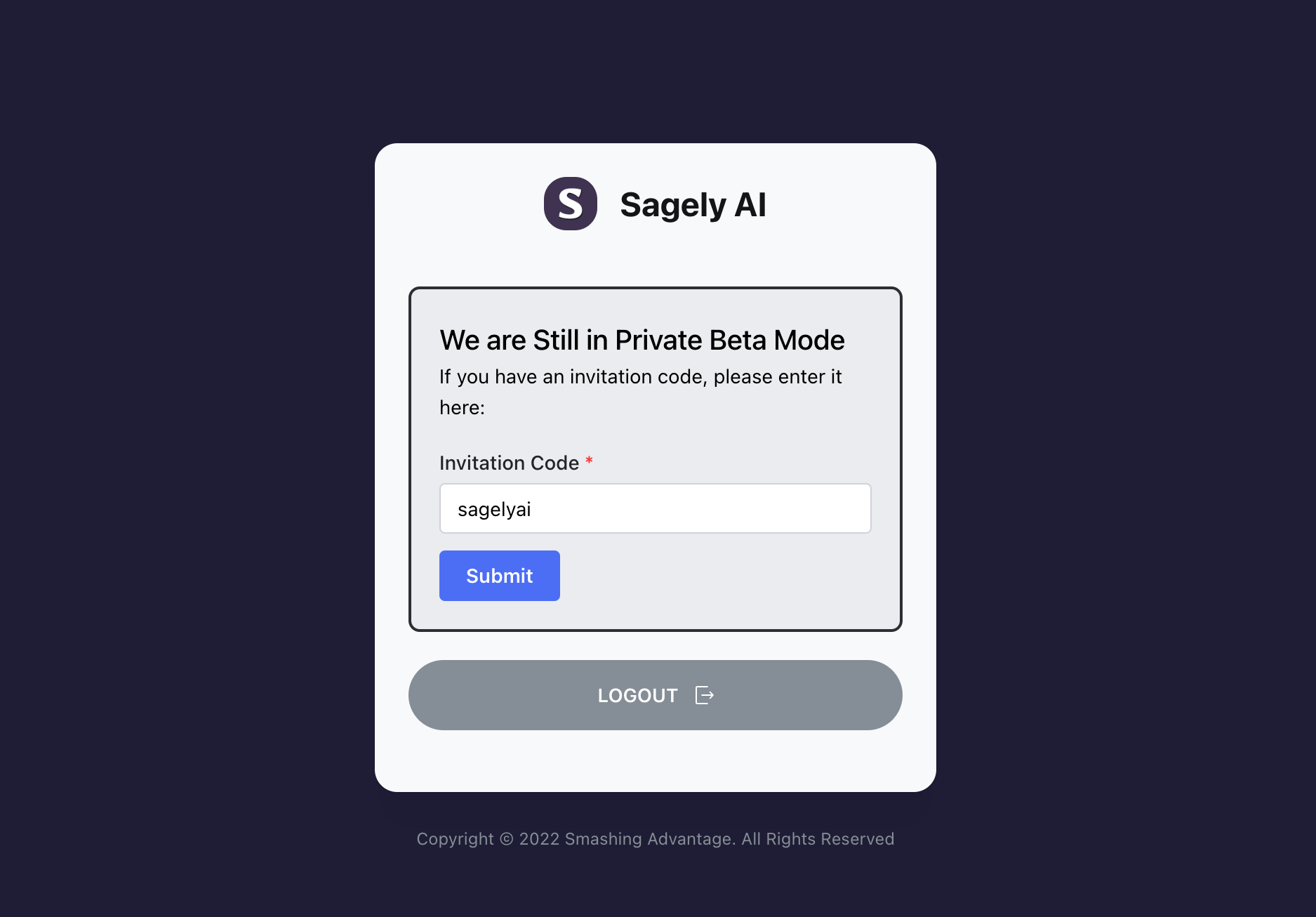
(Note: invitation code is case-sensitive and should be entered as it)
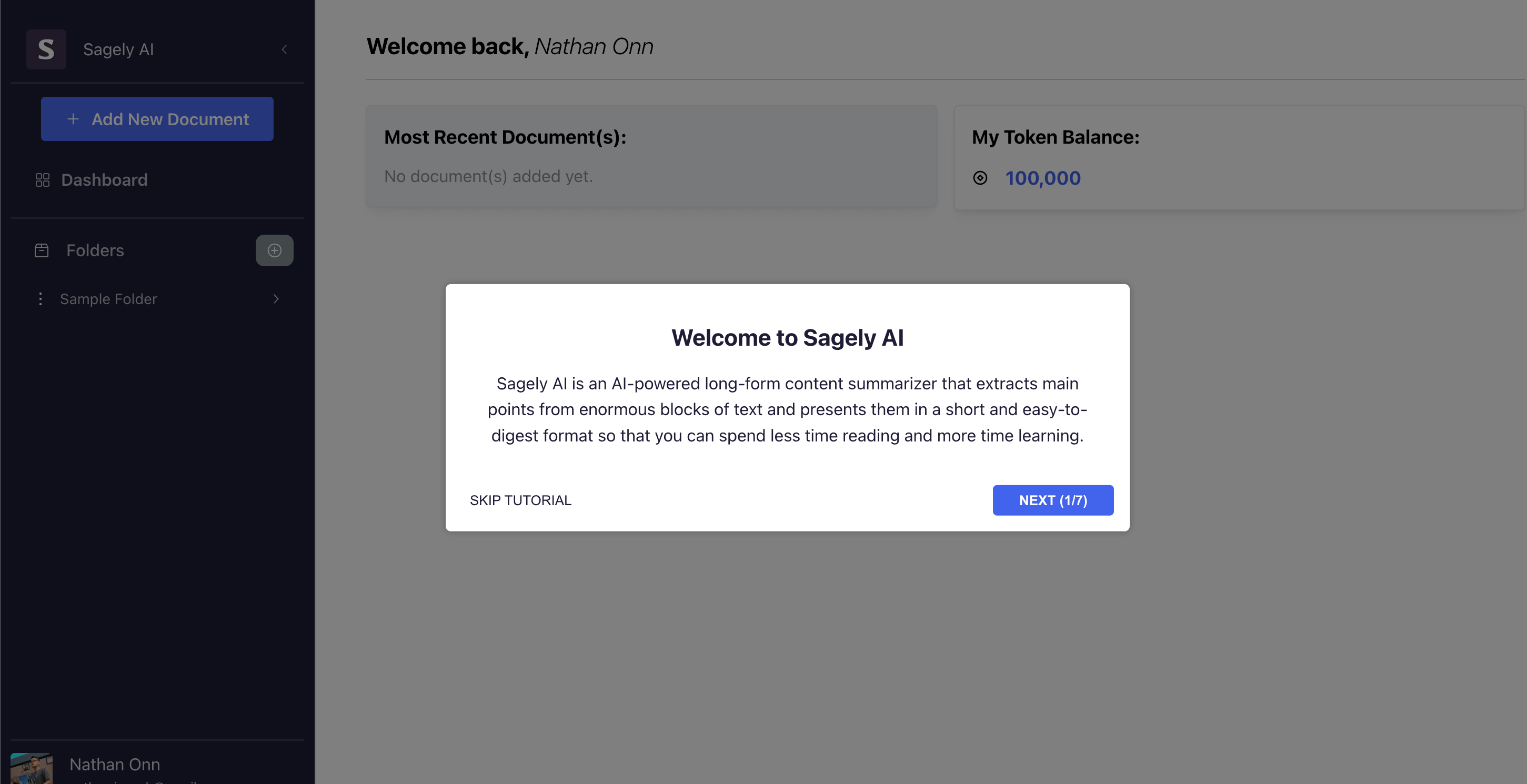
After you’ve submitted your invitation code, you’ll be redirected to the main dashboard:
2. Adding Your First Document.
Now that you’ve logged in, the first thing you’ll want to do is add a new document so that you can start using Sagely AI.
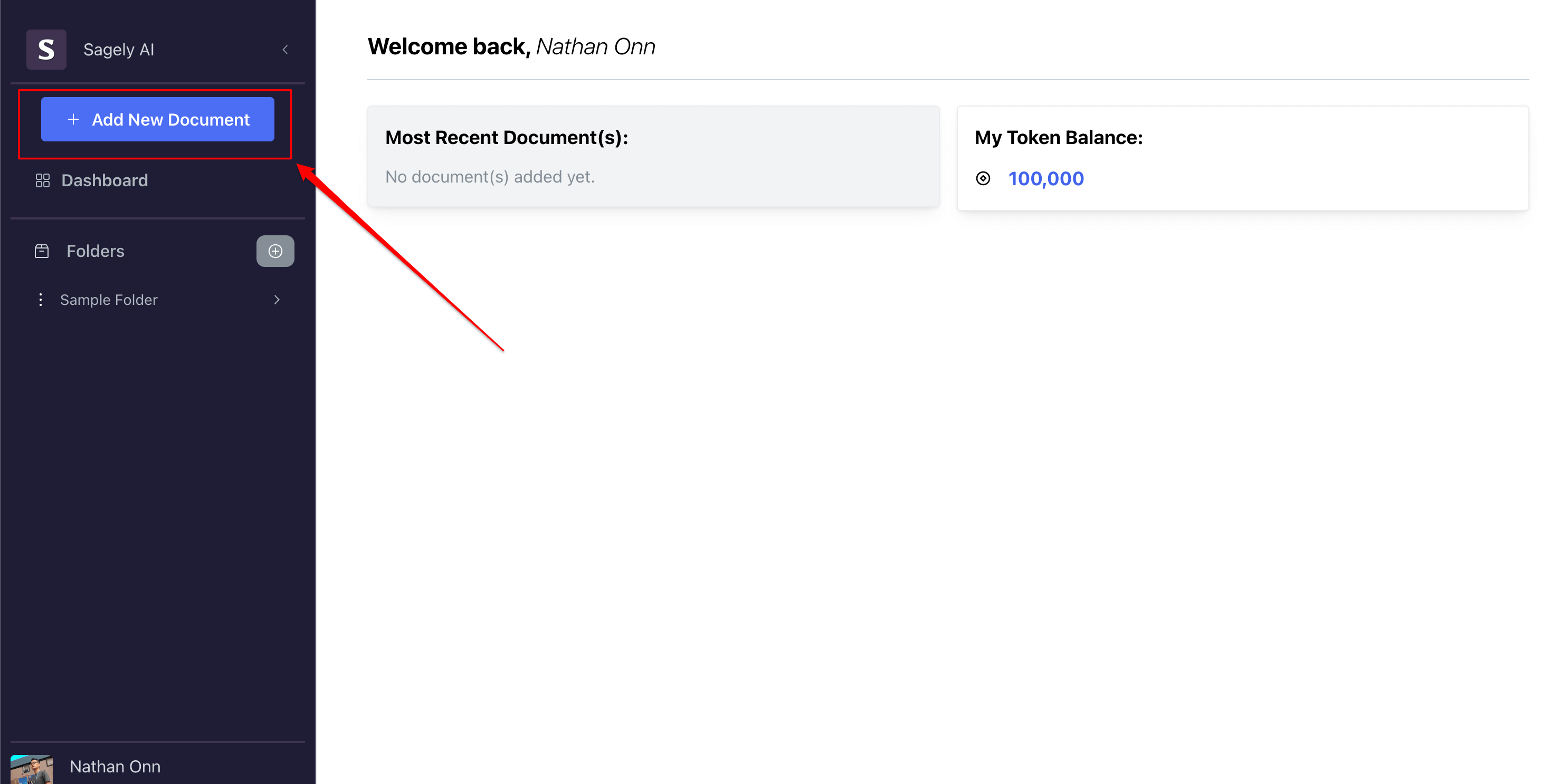
To add a new document, click the “Add New Document” button on the left panel:
You should see a pop-up window like the following:
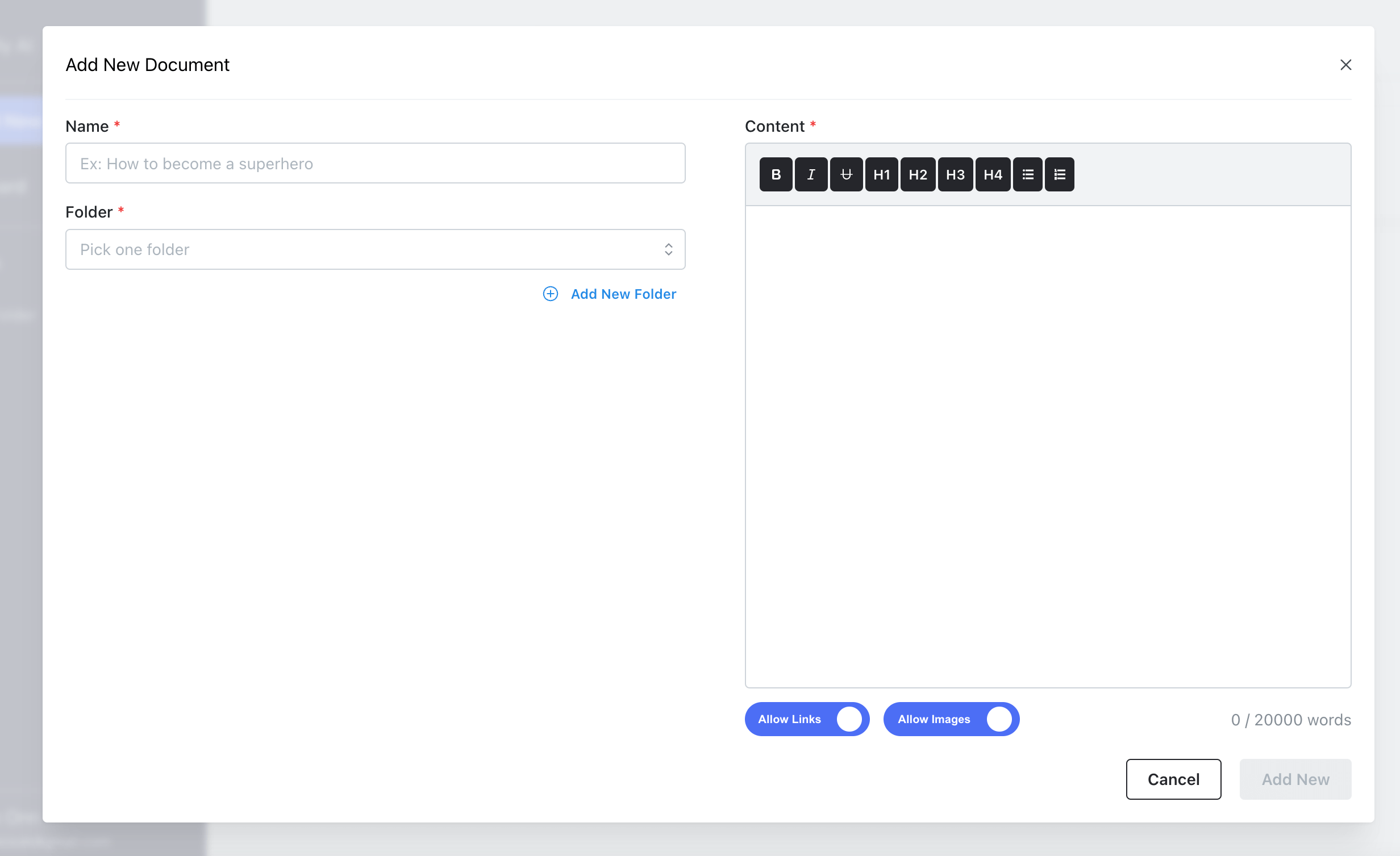
Then, insert the details for your document:
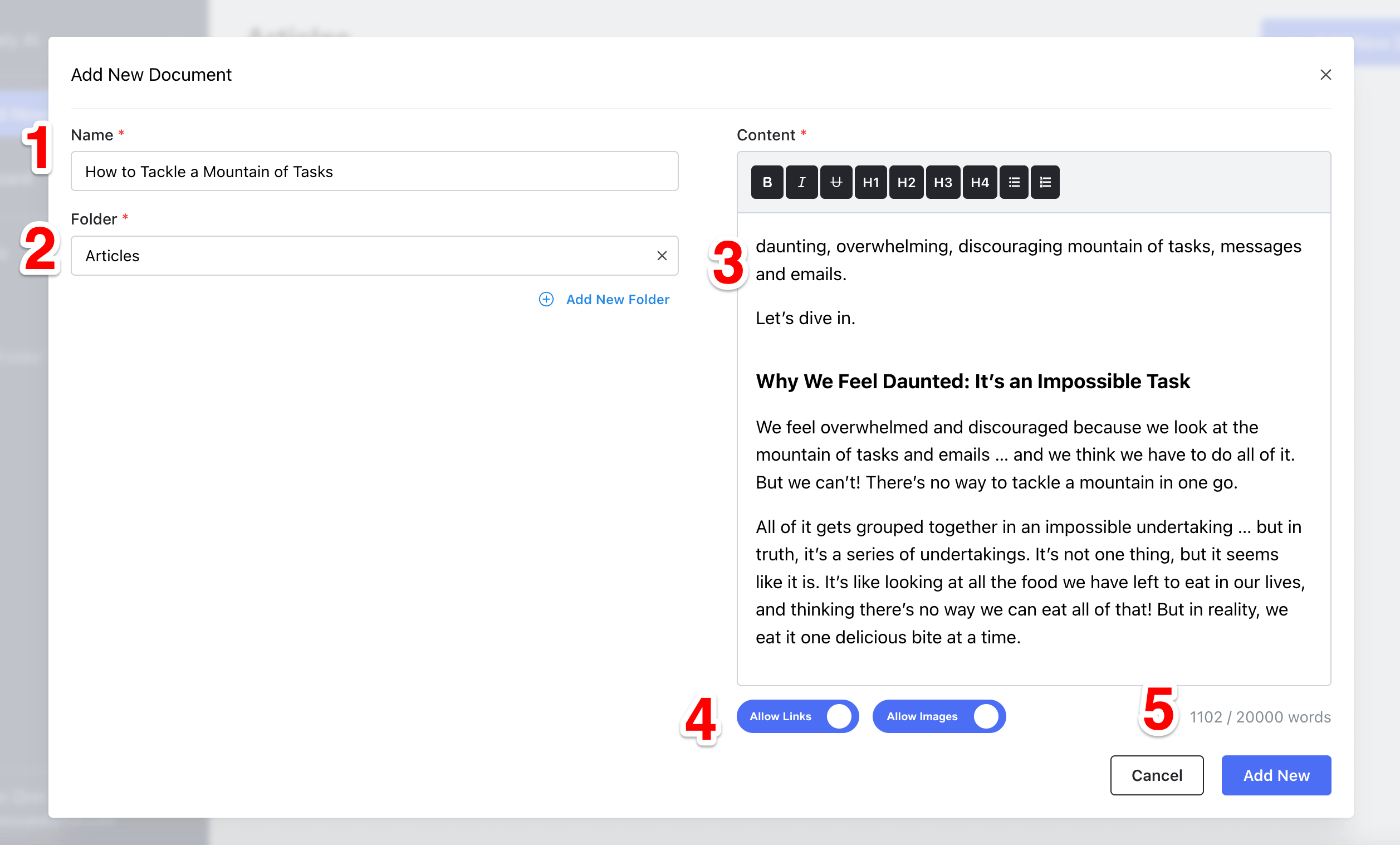
- Name: Insert the title of your document
- Folder: Select the folder where your document will be stored. If you want to add a new folder, click the “Add New Folder” button beneath the folder selector.
- Content: Insert the content you want to be summarized into the editor.
- Allow Links & Images: By default, the app will automatically inherit links & images from pasted content. You can turn this on or off by clicking the buttons
- Word Limits: There is a limit of 20,000 words per document. You might have to break it into multiple documents if your content exceeds the limit.
Once you’ve finished filling in the details, click the “Add New” button to add your new document.
3. Start Generating Insights
You can use Sagely AI to generate insights now that your document is ready.
To start, click the “Generate” button on the right panel.
The app will then start to analyze your document and generate insights. This will takes some time to complete, especially if your document is large.
After the analysis is complete, you’ll see the following screen:
Here you can hover over the insight generated. You should see the highlighted text on the left representing the content used to create the insight.
You can click on the highlighted text to automatically scroll to its position if you don’t see the highlighted text.
Other than that, you can also:
- Add the insight to Notes
- Copy the insight to the clipboard
- Rate the insight
- Regenerate Insight if you feel it doesn’t match what you want. The total token needed to regenerate this insight will appear on the pop-up when you hover over the button.
Additional Tips:
When you click on a specific part of the contents, you should see the insight for the selected section is highlighted on the right side:
4. What’s Next?
Sagely AI is still essentially an MVP (Minimum Viable Product). We’re still in the very early stages of development, so things may not be as polished or feature-complete as they appear here.
It’s easy to get caught up in the details. The most important thing here is helping you turn cluttered information into valuable knowledge, and that’s why we keep the design simple, and the feature set small.
We believe that Sagely AI is a powerful tool that can help you learn more effectively and quickly.
So, give it a try!
We hope you enjoy what we have right now and look forward to your feedback.